
Rumpelstiltskin AI Video Quality: A Practical 768P Review Guide
Review a Rumpelstiltskin AI video with clear playback checks for the face, hands, feet, lighting, and action. Understand what the 10-second, 768P preset describes.
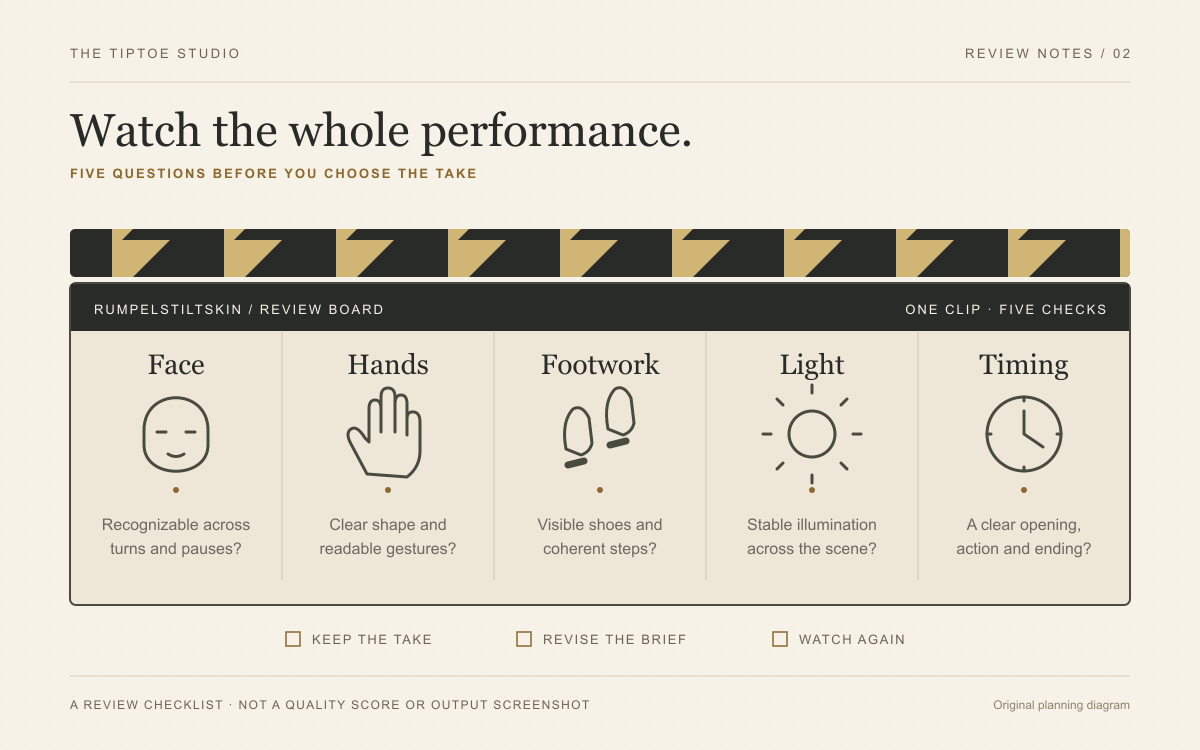
Judge the performance through playback
A strong Rumpelstiltskin clip has a readable idea: the character shares a secret, takes the mischievous steps, and lands the final glance. Judge those moments in motion. A striking thumbnail gives you a reason to watch; the complete performance decides whether the clip is ready to use.
Rumpelstiltskin AI gives the review a clear casting context: You dance uses one identity photo, while You and a friend assigns separate dancer and watcher photos. The fixed workflow requests 10 seconds at 768P after scene preparation. Compare the actual performance with that intended dance, rather than assuming a completed task guarantees a convincing result.
What 768P tells you
768P is the resolution setting requested by this preset. It does not score the choreography, facial consistency, or impact of the final pose. Review the delivered file's actual dimensions and duration when those details matter to your project, and inspect the visible movement separately.
Keep the intended viewing size in mind. Watch the video at a comfortable size, then at the size you expect people to see it. Enlarging a small feature far beyond its normal presentation can distract you from the scene's overall readability. Equally, a small preview can hide a hand or foot problem that becomes obvious in a larger view.
First pass: watch the idea land
Play the whole clip without pausing. Focus on the story you intended. Can you recognize the shush? Does the movement read as the kind of tiptoe you requested? Does the final glance have time to register? Make a short note before you start inspecting details.
Distinguish a creative mismatch from a broken-looking moment. A character that walks naturally when you wanted exaggerated tiptoeing may need a different action direction. A shoe that changes shape during a step needs closer inspection. Both deserve attention, but they suggest different next decisions.
Second pass: inspect the five visual checkpoints
Pause around the moments that matter most. For detailed frame stepping, use the downloaded file in a suitable player or editor. The studio's preview, library, and download controls keep the result accessible for this review.
| Checkpoint | What to inspect | What to record |
|---|---|---|
| Face | Compare similar angles across the sequence. | Any feature that visibly changes or disappears. |
| Hands | Follow the hand as it approaches and leaves the face. | The moment a finger merges, bends oddly, or hides the gesture. |
| Feet | Watch contact with the floor throughout each step. | Sliding, disappearing shoes, or a crop that hides the movement. |
| Lighting | Follow the face, clothing, and nearby background. | Sudden flicker or a brightness change that distracts from the action. |
| Action | Check the opening, movement, and ending together. | A missed gesture, confusing transition, or abrupt finish. |
Treat the sequence as the evidence. A single paused frame may look unusual during a quick movement, so return to normal playback and check whether the moment remains distracting. Conversely, a beautiful ending cannot tell you whether the middle of the dance holds together.
If the character's appearance is the main issue, follow our face-drift troubleshooting guide. If the shoes keep leaving the frame, note whether the problem begins in the prepared scene or during animation. The photo guide separates identity-photo choices from scene-composition review.
Third pass: check the file you will actually use
Open the downloaded file and play it from beginning to end. Check that playback starts, reaches the final moment, and gives you the material you intend to edit. Listen to any audio that is present. A written request about sound is not a substitute for listening to the actual file.
If you add captions, music, or a new crop later, review that exported version too. Check that the caption leaves the gesture visible and that the edit preserves the moment the joke depends on. Our template-versus-generator guide explains where scene creation ends and timeline editing begins.
Turn the review into one useful revision
Choose the issue that most affects your idea. In our studio, check the supplied identities and role assignment, then keep a timestamped note of any scene or movement problem. The instructions are fixed; a slower gesture or different camera move is not a toolbar setting. Such revisions belong to an external editable workflow or product-level investigation.
Keep comparison notes specific. Changing reference, setting, camera and action together makes a cause harder to identify. Our original prompt ideas are for external custom projects; use the aspect-ratio guide when the next decision concerns cropping or presenting the finished file.
This space is reserved for a verified output screenshot from our site. It is not a generated result preview.
Make a decisive selection
Finish with a practical verdict: ready to edit, choose another reference, or report a result that does not meet the intended performance. Keep the version that makes your intended action clear and holds together through playback. That disciplined selection process gives your Rumpelstiltskin idea the attention it deserves, from the first expression to the final frame.